

USB Type-C & USB Standards | USB Technical Guide
1. Introduction
USB (Universal Serial Bus) is the global standard for power and data connectivity across computers, AV equipment, and mobile devices.
This guide explains USB Type-C connector features, supported USB versions (2.0, 3.0, 3.1, 3.2, and 4.0), Alternate Mode support, Power Delivery (PD) specifications, and cable performance criteria to help professional users choose the correct cable or adapter for their application.
2. USB Connector Overview
| Connector Type | Description | Compatibility | Current Status |
|---|---|---|---|
| USB Type-A | Standard rectangular plug found on PCs and chargers | Backward-compatible with USB 1.1–3.2 | Still common but being replaced by USB-C |
| USB Type-B | Square plug for printers and devices | Limited to peripherals | Declining use |
| Micro USB (Type-B) | Compact plug for mobile devices (pre-USB-C era) | USB 2.0/3.0 only | Obsolete |
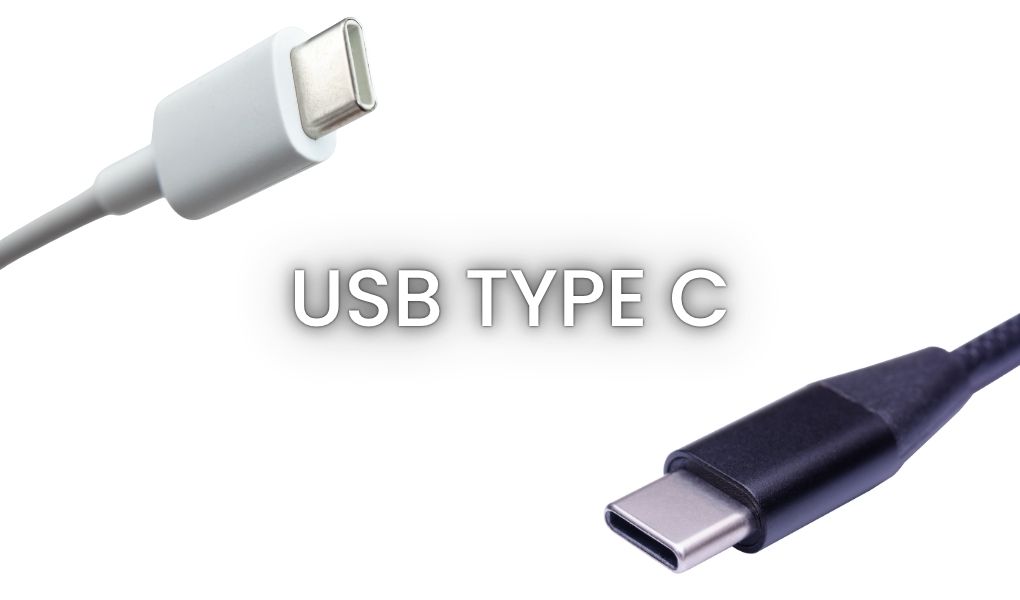
| USB Type-C | Reversible, 24-pin connector supporting data, power & video | Backward-compatible via adapters | Universal standard since 2016 |
Key advantage:
USB-C supports both ends identical, flippable orientation, and multi-protocol compatibility (DisplayPort, HDMI, Thunderbolt).
3. USB Versions & Capabilities
| Version | Max Data Rate | Power (Non-PD) | Connector Type | Typical Use | Notes |
|---|---|---|---|---|---|
| USB 2.0 | 480 Mbps | 2.5W (5V, 0.5A) | Type-A/B/C | Keyboards, mice, low-power devices | Legacy but still used for charging leads |
| USB 3.0 | 5 Gbps | 4.5W (5V, 0.9A) | Type-A/B/C | HDDs, hubs, peripherals | “SuperSpeed” (blue port) |
| USB 3.1 Gen 1 | 5 Gbps | 15W (5V, 3A) | Type-C | External storage, docking | Same as USB 3.0 (renamed) |
| USB 3.1 Gen 2 | 10 Gbps | 15W (5V, 3A) | Type-C | High-speed data | Introduced dual-lane transfer |
| USB 3.2 Gen 1×2 / 2×1 | 10 Gbps | Up to 100W (PD) | Type-C | Video, fast data | Dual-lane via Type-C only |
| USB 3.2 Gen 2×2 | 20 Gbps | Up to 100W (PD) | Type-C | 4K video, SSDs | Uses both lanes simultaneously |
| USB 4.0 | 40 Gbps | Up to 240W (PD 3.1) | Type-C | Thunderbolt 3/4 compatibility | Unified USB & Thunderbolt ecosystem |


4. Power Delivery (PD) – Charging Capability
| PD Version | Max Voltage | Max Current | Max Power | Use Case |
|---|---|---|---|---|
| PD 2.0 | 20V | 5A | 100W | Laptops, monitors |
| PD 3.0 | 20V | 5A | 100W | Phones, tablets, hubs |
| PD 3.1 (EPR) | 48V | 5A | 240W | Gaming laptops, monitors, e-bikes |
| PD PPS (Programmable) | 3.3–21V | 5A | 100W | Smart charging (Samsung, Google, etc.) |
Notes:
-
Always use E-marked cables for >60W or >3A delivery.
-
PD communication negotiates voltage/current automatically.
-
Non-PD USB-C cables are limited to 15W (5V, 3A).
5. Alternate (Alt) Mode Support
USB Type-C supports alternate data protocols via its high-speed lanes.
| Alt Mode | Purpose | Typical Cable Requirement |
|---|---|---|
| DisplayPort Alt Mode | Transmits 4K/8K video over USB-C | Full-featured USB-C cable |
| HDMI Alt Mode | Direct HDMI output (rare) | Specific USB-C to HDMI cable |
| Thunderbolt 3 / 4 | 40 Gbps data + video + power | Certified active cable required |
| VirtualLink (deprecated) | VR headset connection | 4-lane USB-C with PD support |
Tip: Not all USB-C cables or ports support Alt Mode — check host and device capability.
6. Cable and Connector Ratings
| Cable Type | Data Support | Power Support | Marking / ID | Recommended Use |
|---|---|---|---|---|
| USB 2.0 Type-C Cable | 480 Mbps | 15W | Unmarked | Basic charging, peripherals |
| USB 3.2 Gen 1 Cable | 5 Gbps | 60W | “SS” or “5Gbps” | Standard peripherals |
| USB 3.2 Gen 2 Cable | 10 Gbps | 100W | “SS10” | Fast data, docking |
| USB 3.2 Gen 2×2 Cable | 20 Gbps | 100W | “SS20” | SSDs, displays |
| USB 4 Cable (Passive) | 40 Gbps | 100W | “40Gbps” | Thunderbolt/USB4 use |
| USB 4 Cable (Active) | 40 Gbps | 240W | “240W” / “EPR” | High-power laptops, hubs |
Cable Length Guidelines:
-
Passive USB 3.x cables: ≤1 m for best performance
-
USB 4 (active): up to 2 m
-
Long runs require active repeater or optical cables
7. Compatibility Summary
| Device / Use Case | Recommended Cable | Data Speed | Power Delivery |
|---|---|---|---|
| Smartphone / Tablet | USB-C 2.0 | 480 Mbps | 15W–100W (PD) |
| Laptop / Docking Station | USB 3.2 Gen 2×2 or USB4 | 20–40 Gbps | 100–240W |
| External SSD | USB 3.1 Gen 2 / 3.2 | 10–20 Gbps | 15–60W |
| Monitor via USB-C | DisplayPort Alt Mode | — | 60–100W |
| Thunderbolt Hub | USB4 (Active) | 40 Gbps | 240W (EPR) |
8. Safety & Quality Considerations
-
Always use certified USB-IF cables (marked “Certified USB”).
-
Avoid unmarked high-wattage cables — risk of overheating or port damage.
-
Check for E-mark chips in cables over 3A or 100W.
-
Replace damaged or frayed cables immediately.
-
For professional installations, select cables compliant with UL, CE, or TUV standards.
10. Compliance & Standards
-
USB-IF, HDMI, DisplayPort, and VESA signal compliance.
-
UL / CE / FCC / EN 55032 / 55035 safety and EMC standards.
-
RoHS / REACH environmental compliance.
-
For government or defence use: NIAP-certified secure KVM recommended.
Sourcing Your USB Solutions
Fairline lead the way on USB cables, hubs & adapters
We ensure we have the most up-to-date USB technology on offer – with options to suit your every requirement. browse our USB product categories below, or call or email us today for trusted advice, quotations and any support you may require.
Call – 01622 716688 / Email – [email protected]

Need coffee for your office drinks machine? Head to Computerstar for the latest flavours and offers!